Sign In
Sign in to the Access Control Admin portal and manage your account access. Sign-in and password reset are powered by DigiWedge IDP.
Last updated: 2026-01-26 Where to find it: Sign-in screen (/login) Who can use it: All users with portal access Prerequisites: Active account and password or a registered passkey; MFA app if required Help link: /authentication
How to do it
Sign In
- Go to the Access Control Admin portal.
- Enter your Email address.
- Enter your Password.
- Click Sign In.
Sign in with a passkey
- Open the Access Control Admin portal.
- Enter your email address (optional for discoverable passkeys).
- Click Sign in with Passkey.
- Approve the prompt using biometrics or your security key.
Multi-Factor Authentication
If MFA is enabled for your account, you'll see a verification step after entering your password.
- Open your authenticator app (Google Authenticator, Authy, etc.).
- Find the entry for DigiWedge Access Control.
- Enter the 6-digit code shown.
- Click Verify.
Password Reset
If you've forgotten your password:
- Click Forgot password? on the sign-in page.
- Enter your email address.
- Click Send Reset Link.
- Check your email for the reset link.
- Click the link and enter your new password.
- Sign in with your new password.
Social Sign-In
If enabled by your administrator, you can sign in with:
- Google — Click "Sign in with Google"
- Facebook — Click "Sign in with Facebook"
You'll be redirected to the provider to authenticate, then returned to the portal.
Sign Out
- Click your profile avatar in the top-right corner.
- Select Sign Out from the dropdown menu.
- You'll be returned to the sign-in page.
Note: Signing out ends your current session on this device only. Other active sessions remain valid until they expire or are revoked.
What you'll see (fields)
Sign-in fields
| Field | Type | Description |
|---|---|---|
| Your registered email address | ||
| Password | Text | Your account password |
| Remember me | Toggle | Stay signed in on this device |
| Passkey button | Action | Starts passkey sign-in on supported devices |
MFA fields
| Field | Type | Description |
|---|---|---|
| Verification Code | Numeric | 6-digit code from your authenticator app |
| Remember this device | Toggle | Skip MFA on this device for 30 days |
Screenshot / Callout
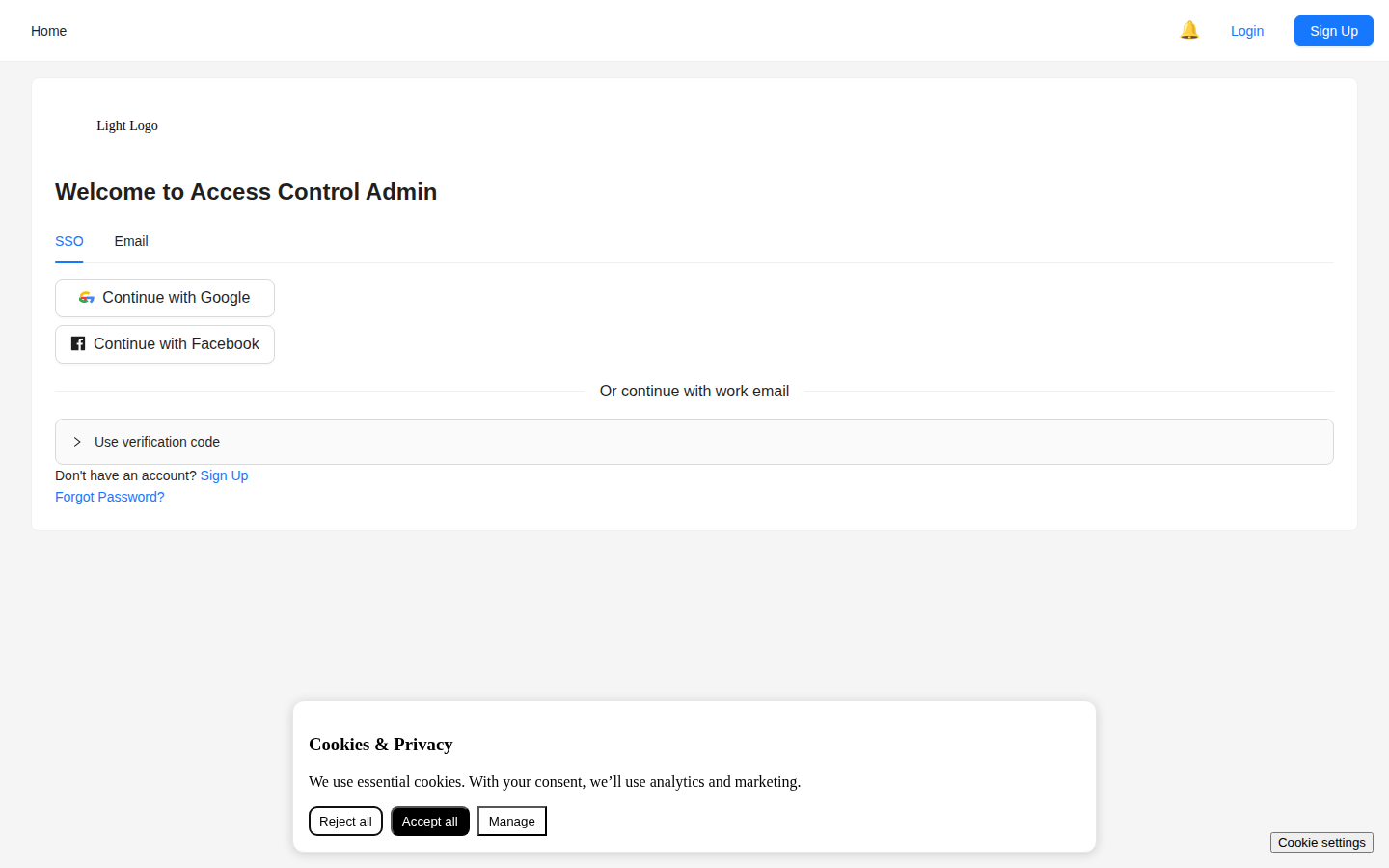
Expected outcome
- You land on the Dashboard if your credentials or passkey are valid.
- If MFA is required, the portal prompts for a verification code.
Troubleshooting
- "Invalid credentials"? Double-check your email and password. Passwords are case-sensitive.
- Account locked? After too many failed attempts, accounts are temporarily locked. Wait 15 minutes or contact your administrator.
- MFA code not working? Ensure your device clock is accurate. Codes are time-based and expire after 30 seconds.
- No reset email? Check your spam folder. Contact your administrator if it doesn't arrive.
- Passkey prompt not appearing? Ensure your browser supports passkeys and that a passkey is registered.
- Passkey cancelled? Re-open the prompt and approve it on your device.
Related
- Getting Started — Portal overview
- User Management — Managing users and profiles
- FAQ — Common questions